Timberscan/Timberline Access
Last updated: Aug 11, 2026
388
views

- Log into Timberscan/Timberline through AppGate:
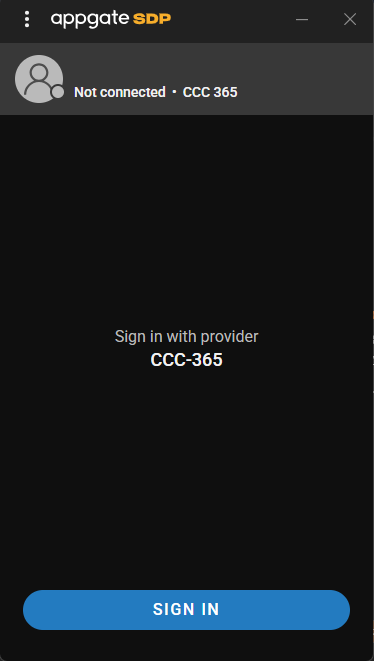
- Sign into AppGate SDP using your Single Sign On (SSO) account, this is the account you use logging into your computer, BambooHR, KnowB4, etc.
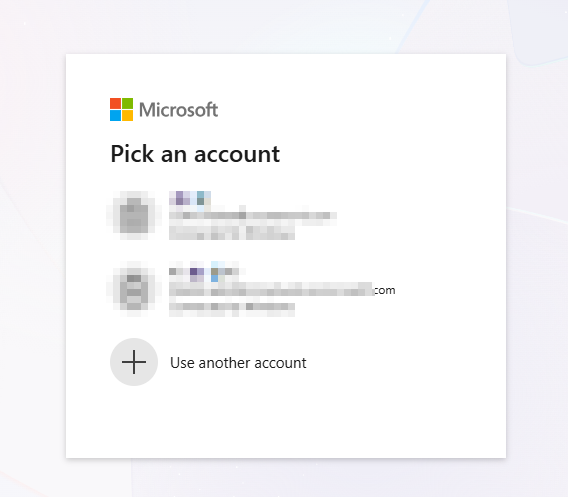
- Once you hit sign in on AppGate it will take you to this screen, here you will login using your SSO account.
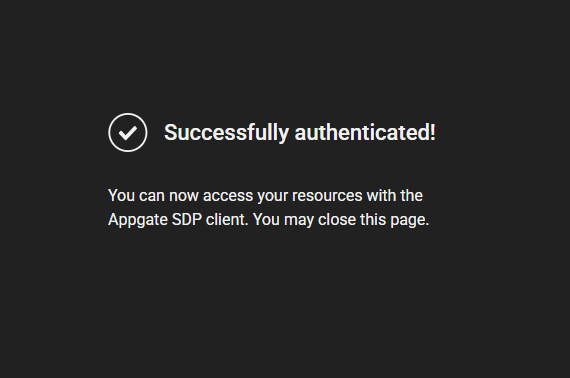
- Once you are signed in this screen will pop up showing you are successfully authenticated.
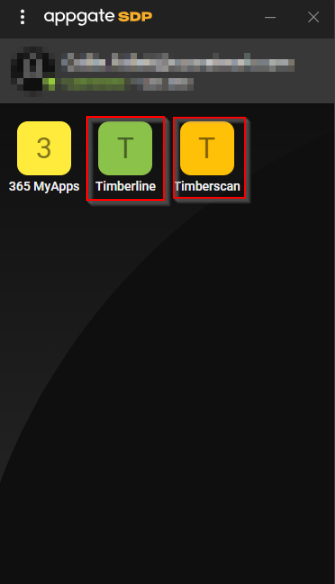
- Once you are all signed into AppGate open the application back up and click on the Timberscan icon as shown above.
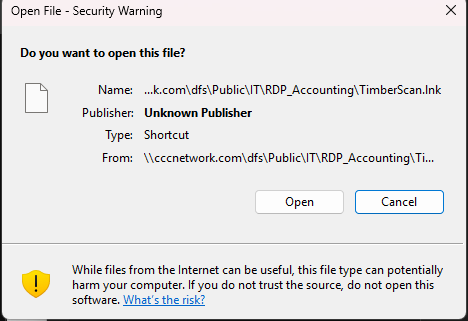
- Once you click on that, this notice will pop up. go ahead and click open.
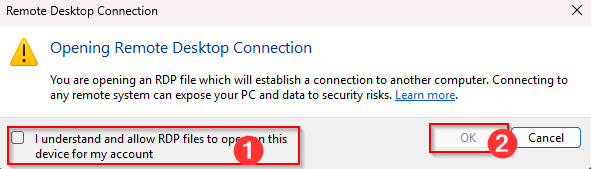
- From here you will check the box that says "I understand" and hit OK. The OK button will be greyed out until you check the "I understand" box.
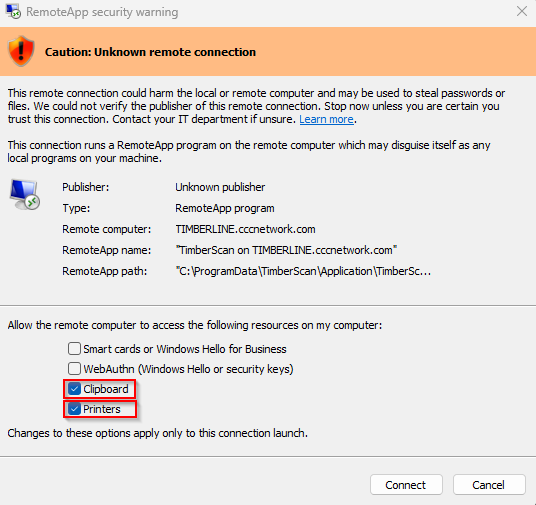
- Once you see this screen you will check the boxes Clipboards and Printers, this will allow the remote desktop to access your computers clipboard and printers. If you do not check these boxes you will not be able to copy paste from your computer to the remote desktop, or use the printers from your computer through the remote desktop.
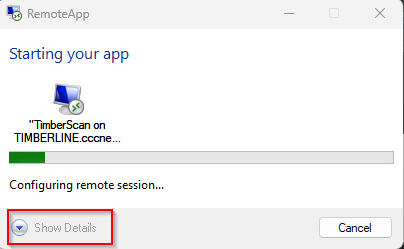
- After you check those boxes you will hit the Show Details button as shown above.
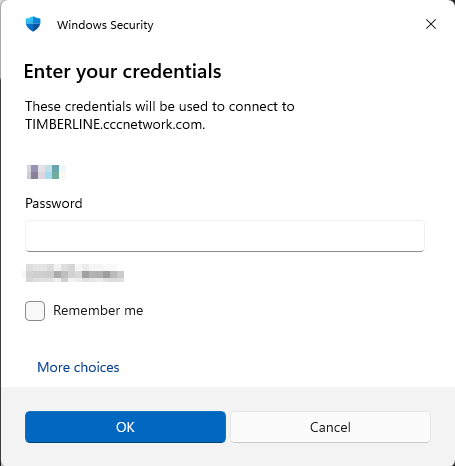
- Here you will input your SSO Login again to login to the remote desktop.
- After you login here, you will then use the credentials that the Accounts Payable Manager gives you.
If there are any questions please contact us at [email protected]